- A Windows 2025 VM migrated from ESXi to Proxmox 9.1.9 via the Veeam Backup and Restore method. The application is in service.
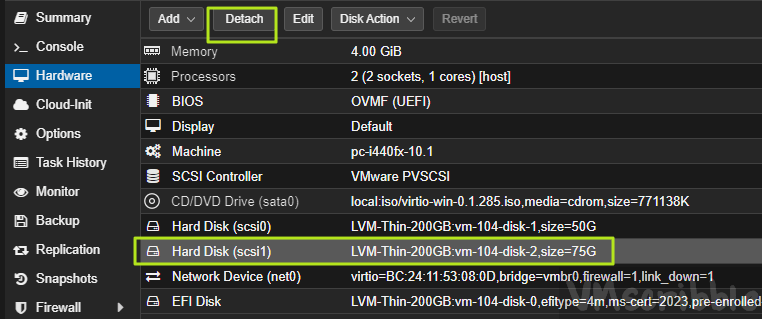
- SCSI Controller Type is VMware PVSCSI
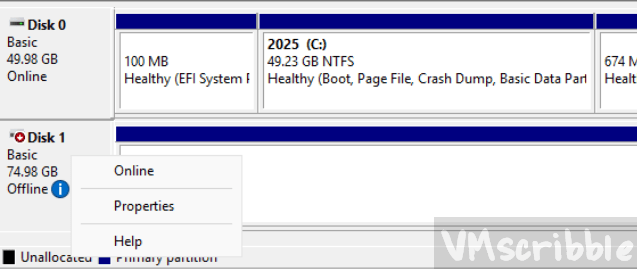
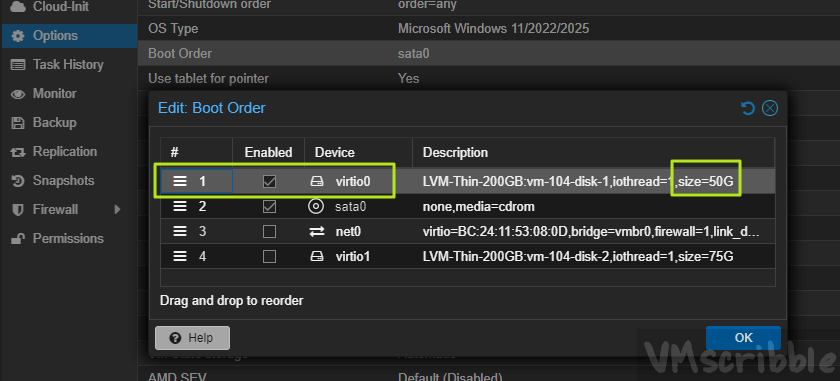
- 1st disk is C:\ 50GB (OS Boot) scsi0 in proxmox / disk0 in windows
2nd disk is E:\ 75GB disk drive. scsi1 in proxmox / disk1 in windows
Both disk are on the VMware PVSCSI. - VirtIO 0.1.285 was installed with the NIC is using the VirtIO model. Hardware version 10.1 for i440fx
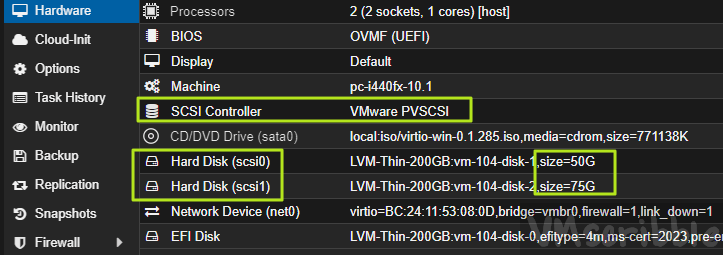
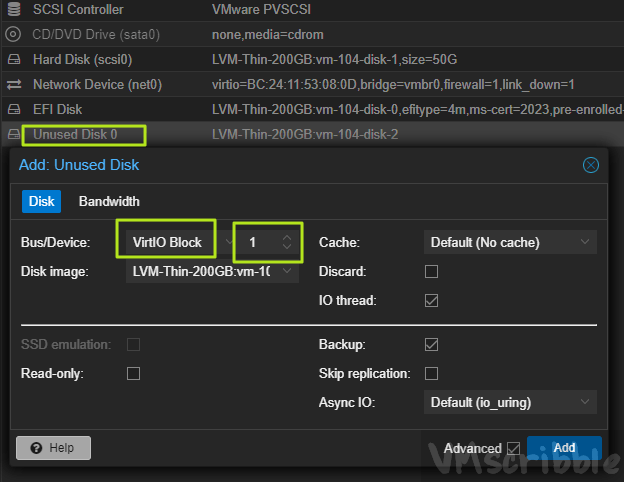
- Goal – Change the SCSI Controller type from VMware PVSCSI to VirtIO SCSI single
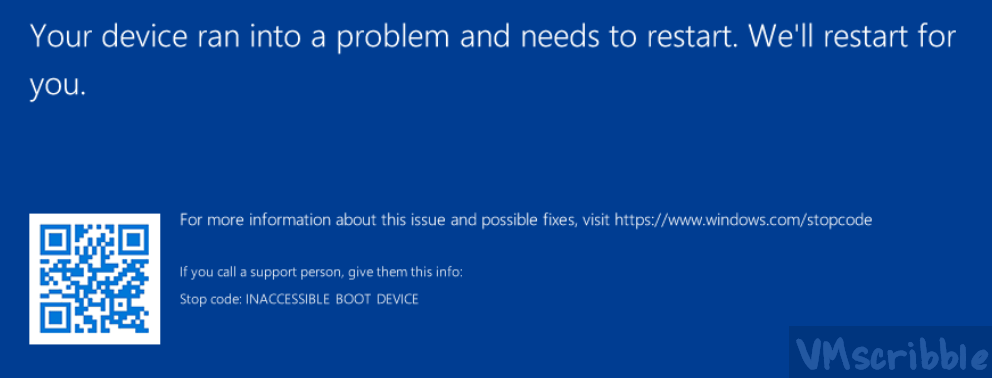
- Issue – Windows boots to a BSOD – INACCESSIBLE BOOT DEVICE
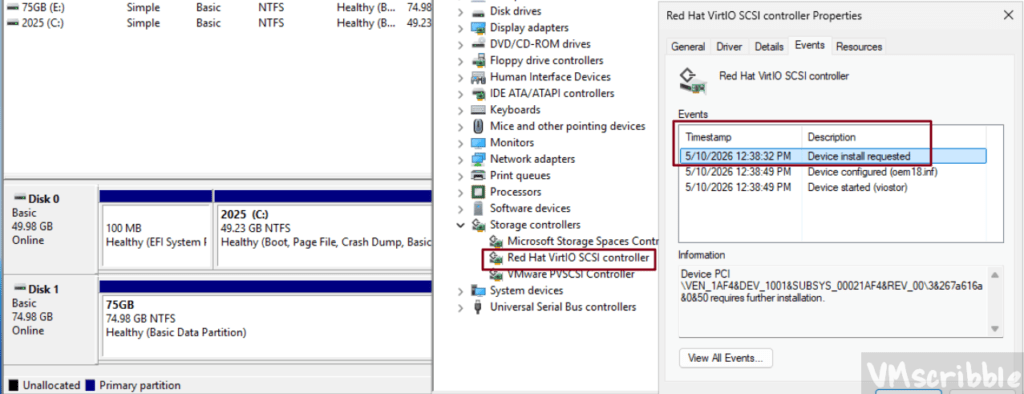
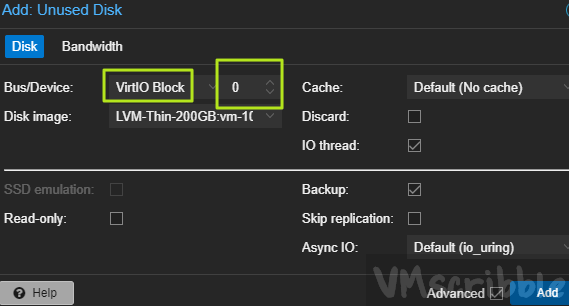
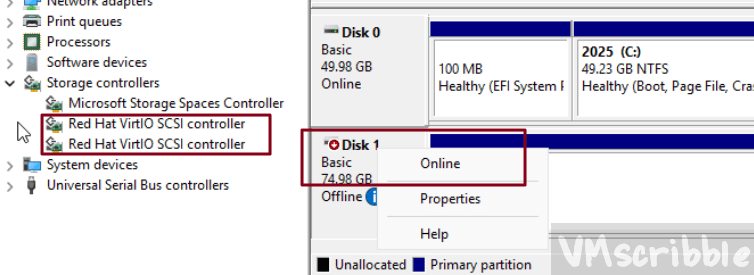
- Cause – From reading some blogs (Link 1, Link 2), Windows needs be booted up and have another Disk using the VirtIO in order to initialize the VirtIO disk driver in order to be used for the C:\ windows drive bootup.
High Level
- Another blog – A single disk VM, edit to SATA, then add a 2nd disk to be VirtIO to initialize the driver.
- This blog – The VM has 2 disk drives. I did not find a need change from VMware PVSCSI to SATA since windows boots up fine. The 2nd disk was used to initialize the VirtIO driver vs hot adding a 3rd drive.